Custom Dictionary
Why Use a Custom Dictionary?
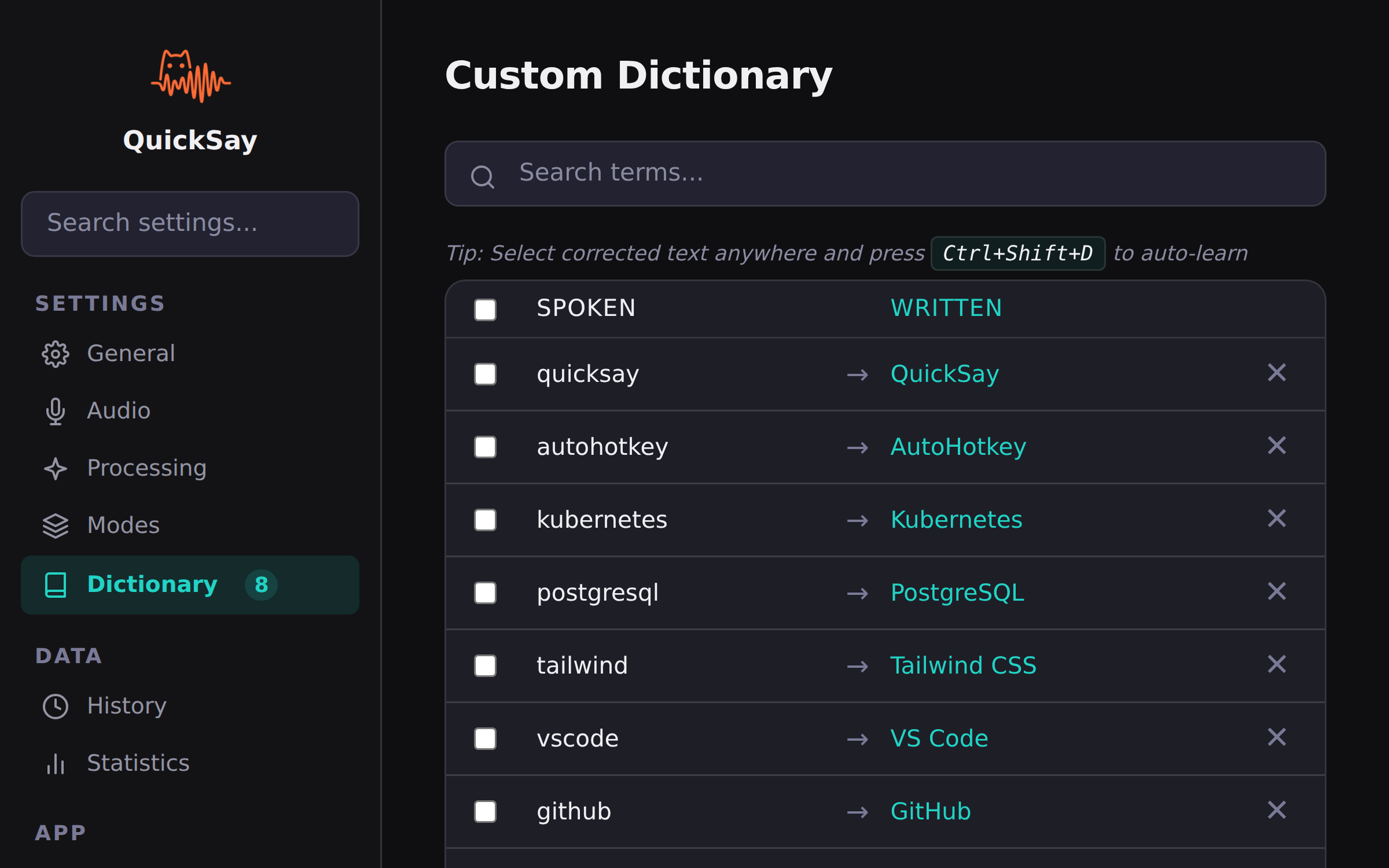
Speech-to-text engines sometimes misinterpret uncommon words: brand names, technical terms, acronyms, or proper nouns. QuickSay’s custom dictionary tells the AI exactly how these words should appear in your text.
For example, without a dictionary entry, “quicksay” might be transcribed as “quick say” or “quick-say.” A dictionary entry ensures it always appears as “QuickSay.”
Adding Dictionary Entries
- Open QuickSay settings from the system tray.
- Navigate to the Custom Dictionary section.
- Add entries in the format shown below.
Each entry maps a spoken form to the desired written form:
{
  "quicksay": "QuickSay",
  "groq": "Groq",
  "api": "API",
  "oauth": "OAuth",
  "postgresql": "PostgreSQL"
}
Dictionary File Location
The dictionary is stored as a JSON file in your QuickSay data directory:
%APPDATA%\QuickSay\dictionary.jsonYou can edit this file directly with any text editor. Changes take effect on the next dictation, no restart required.
How the Dictionary Affects AI Cleanup
During the text cleanup step, The AI receives your dictionary entries as context. When it encounters a word matching a dictionary key, it substitutes the preferred form. This happens after transcription, so it corrects both Whisper errors and formatting.
Tips
- Case matters for output. The value you set is exactly what appears in your text.
- Acronyms work well. Add entries like
"aws": "AWS"or"ci cd": "CI/CD". - Proper nouns are the biggest win. People’s names, product names, and company names are the most common misinterpretation by speech-to-text.
- Keep the list focused. A dictionary with 50-100 targeted entries performs better than one with thousands of generic words.