Troubleshooting
QuickSay Isn’t Typing in My App
Symptom: You dictate, the overlay shows success, but no text appears.
Cause: QuickSay inserts text via the clipboard. Some applications block clipboard access or don’t respond to paste commands in certain contexts.
Solutions:
- Make sure the target text field is focused (click on it) before dictating.
- Try a different application to confirm QuickSay is working. Notepad is a reliable test.
- Some elevated (admin) applications block clipboard access from non-admin processes. Try running QuickSay as administrator.
- If the app uses a custom text input (e.g., some Electron apps), try pressing
Ctrl+Vmanually after dictating.
Audio Quality Is Poor
Symptom: Transcriptions are inaccurate or missing words.
Solutions:
- Check your microphone in Windows Settings > Sound > Input. Ensure the correct device is selected and the input level is adequate.
- Move closer to the microphone or reduce background noise.
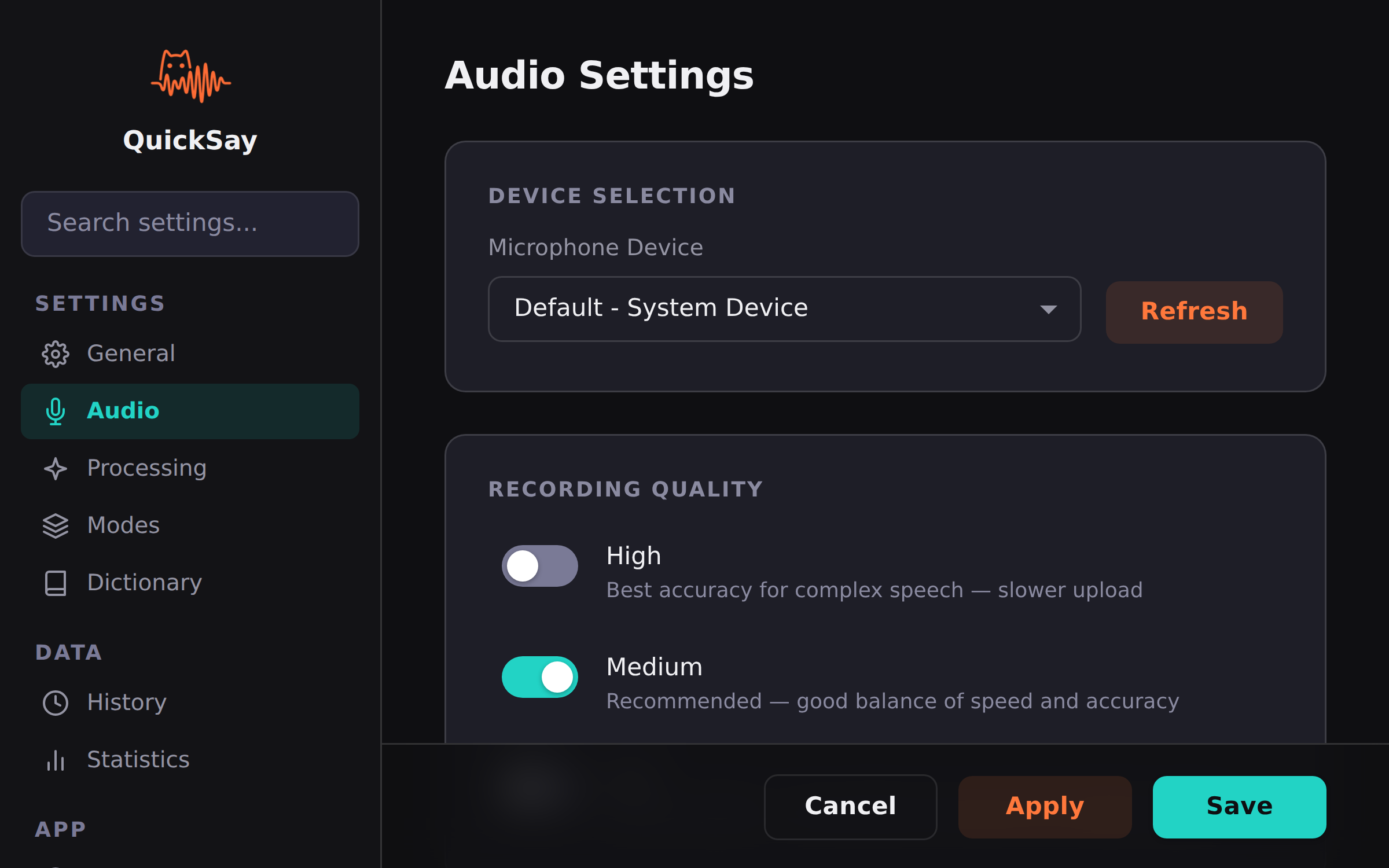
- In QuickSay settings, try switching the Recording Quality preset. Higher quality captures more detail but produces larger files.
- External USB microphones generally outperform built-in laptop mics.
- Avoid Bluetooth microphones if possible. They often use a lower-quality audio codec.
Groq API Errors
Symptom: QuickSay shows an API error after dictating.
Common causes and fixes:
| Error | Cause | Fix |
|---|---|---|
401 Unauthorized | Invalid or missing API key | Check your API key in QuickSay settings |
429 Too Many Requests | Free tier rate limit exceeded | Wait a few minutes, or upgrade your Groq plan |
500 / 503 | Groq server issue | Check Groq status and try again later |
Groq’s free tier typically covers normal use, and its limits are Groq’s to change (see Groq’s rate limits for current figures). If you consistently hit limits, consider a paid plan or spreading usage across the day.
High Latency
Symptom: There’s a long delay between speaking and text appearing.
Solutions:
- Check your internet connection. QuickSay requires a stable connection to Groq’s API.
- Large audio clips take longer to process. Keep individual recordings under 30 seconds for best performance.
- Groq servers occasionally experience higher load. Check Groq status.
- If you’re on a VPN, try disconnecting. VPNs add latency to API calls.
Text Appears Garbled or in the Wrong Language
Symptom: The transcribed text is nonsensical or in a language you didn’t speak.
Solutions:
- If you have Auto-detect enabled, try setting your language explicitly in QuickSay settings.
- Ensure your microphone isn’t picking up background conversations or audio from speakers.
- Low-quality audio can confuse language detection. See the audio quality section above.
- If the issue persists with a specific phrase, add it to your custom dictionary.
QuickSay Won’t Start
Symptom: The application doesn’t appear in the system tray after launch.
Solutions:
- Check if QuickSay is already running in the system tray (it may be in the overflow area, click the
^arrow). - Restart the application from the Start menu or installation directory.
- Check the QuickSay log file at
%APPDATA%\QuickSay\log.txtfor error details. - Ensure your Windows version is 10 or later (64-bit).