Getting Started
Download and Install
- Download the installer from the download page — a 29 MB download, about 101 MB once installed.
- Run the .exe and follow the on-screen prompts. No admin privileges required.
- QuickSay appears in your system tray once installation completes.
Your First Dictation
Press the default keyboard shortcut to start recording:
Ctrl + Shift + SpaceSpeak naturally. When you release the keyboard shortcut (or press it again), QuickSay sends your audio to the cloud for AI transcription, then cleans it up with AI text processing. The finished text appears at your cursor in whatever app you’re using.
Technical details
Powered by Groq’s Whisper-large-v3 model for transcription and Groq-hosted AI for text cleanup. Your connection key links QuickSay directly to these services through your Groq account.
The whole round trip usually takes a second or two, depending on your connection and how long you spoke.
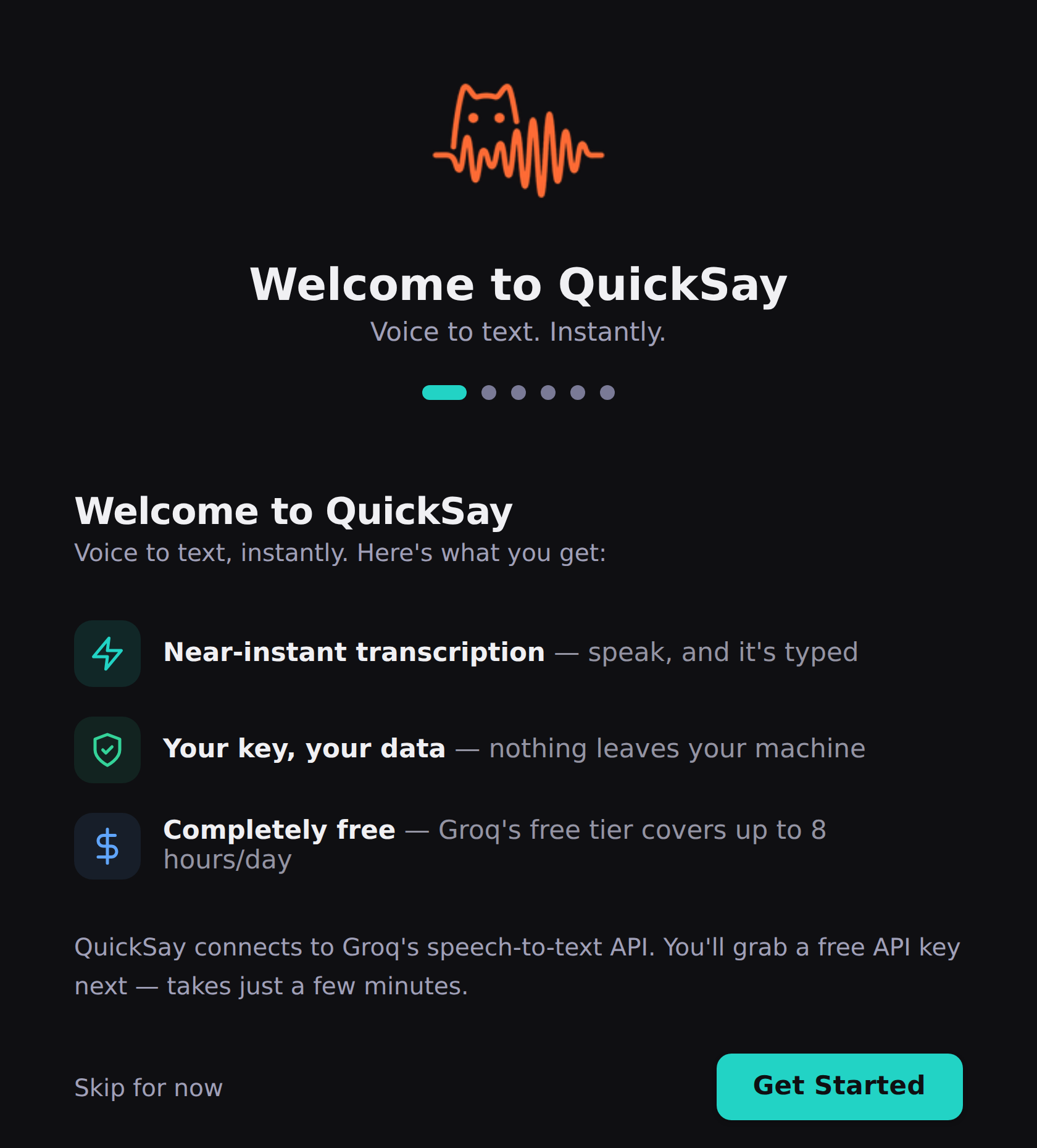
How It Works
- Record: Hold the keyboard shortcut. QuickSay captures audio from your default microphone.
- Transcribe: Audio is sent to the cloud for AI speech-to-text.
- Clean up: AI processes the raw transcript: fixes punctuation, capitalization, filler words, and applies your custom dictionary.
- Insert: The polished text is pasted at your cursor via the clipboard.
System Requirements
- OS: Windows 10 or later (64-bit)
- Internet: Required (for AI transcription)
- Microphone: Any USB or built-in mic
- Disk space: ~150 MB
Configuring Your Keyboard Shortcut
Open the QuickSay settings from the system tray icon and navigate to the Keyboard Shortcut section. You can assign any key combination that doesn’t conflict with your existing shortcuts.
Connecting Your AI Account
QuickSay requires a free AI account for transcription:
- Sign up at groq.com and create your free account (no credit card required).
- Copy your personal connection key from the Groq dashboard.
- Open QuickSay settings and paste your key in the AI Connection field.
- Save and restart QuickSay.
Groq’s free tier typically covers it. If you need more capacity, Groq’s paid usage runs about $0.04 per hour of audio, which stays under a dollar a month even for heavy use.